
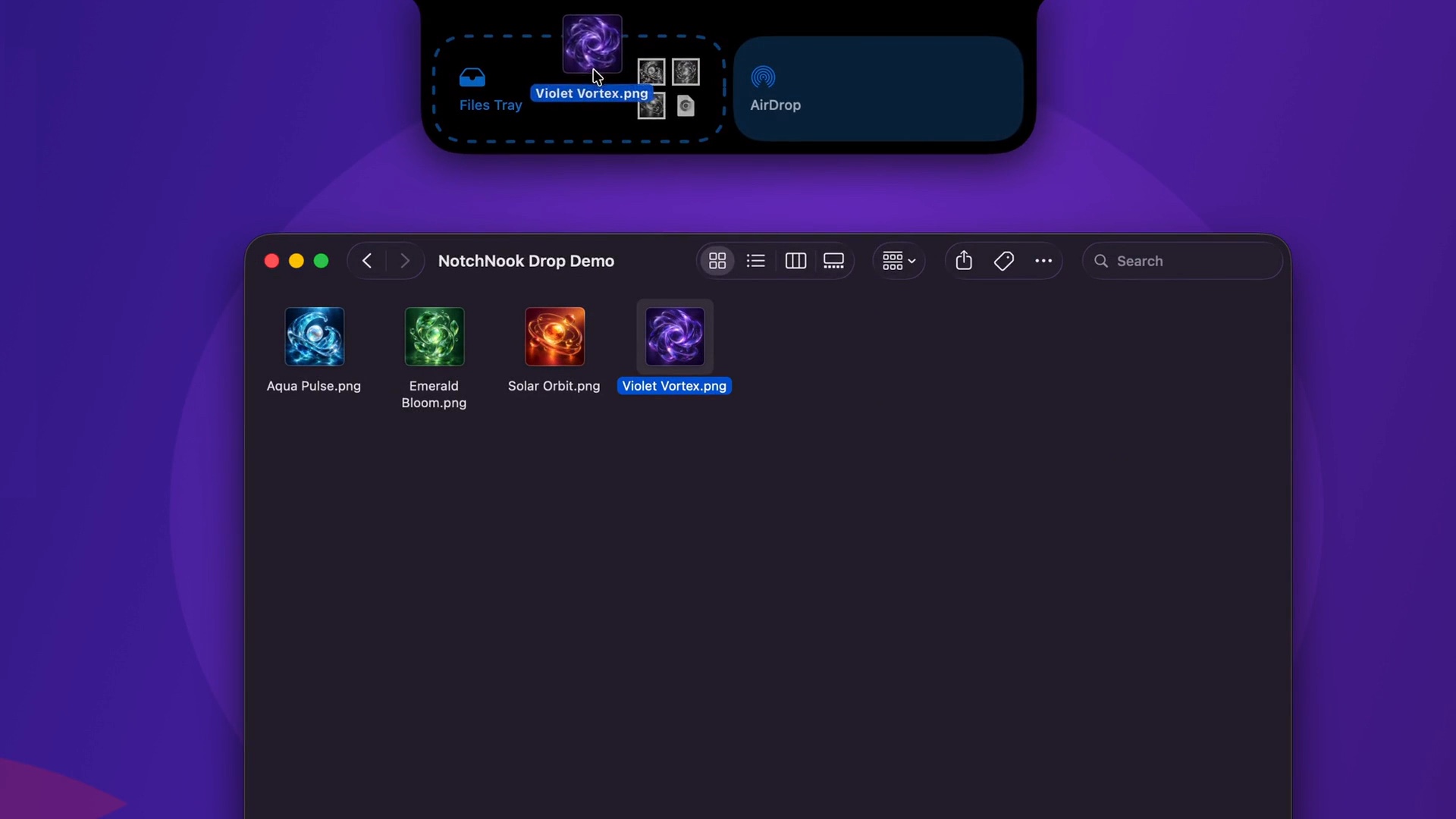
Stage the file you are working with
Drop a working file onto the notch to bring it into the Tray. Use a file you recognize, such as the PDF you have just exported or an image needed for your current task.
The Tray is a convenient staging place in the workflow; keep your normal folders and naming system as the way you organize the work itself. This makes it clear which file is ready to use and where the source belongs.
Finish the handoff
For a nearby-device transfer, use the Tray’s AirDrop workflow. Have the receiving device ready and confirm the received file there. For work on the same Mac, use the staged item in the application where it is needed next.
A good first test uses one small, recognizable file. It lets you check the complete path, including the receiving device, rather than stopping after the file appears in the panel.
- Stage one recognizable export in the Tray.
- Send it to the intended device using AirDrop.
- On the receiving device, open the file and check its name and contents.
Close the loop
Open the received or placed file and check that it is the intended export. Then return to the task you paused for the transfer. NotchNook’s persistent Tray keeps files between restarts, which can help when the handoff is interrupted.
For a repeating workflow, make the file name meaningful before staging it. A name that identifies the project and version is useful on both sides of the transfer and avoids confusion between several exports.
Move one file between apps
Try a file you can easily recognize, such as a PDF you have just exported. The screenshot shows the two drop targets that appear when a file approaches the notch.
- Drag the file from Finder toward the top of the display.
- Drop it in Files Tray to keep it close while you switch to the destination app.
- Open the Tray, then drag the staged file into the destination window.
- Open the file in its destination to check that you used the intended document. Keep the original in your normal folder structure.
Send a file with AirDrop
Use the separate AirDrop target when the next destination is another nearby Apple device. Choose the intended recipient in the AirDrop interface and confirm receipt on that device.
If a recipient is not available, check AirDrop discoverability, Wi-Fi and Bluetooth on the devices. A file visible in the Tray is staged locally; that alone does not mean AirDrop has delivered it.