Set up the calendar on macOS first
Check that the events you need are visible in the Mac’s Calendar app. For Google Calendar, add the Google account to macOS and enable its calendar feature. Apple’s Internet Accounts documentation explains how accounts are added and managed.
Then grant NotchNook the calendar access required for its calendar view. This gives the panel a calendar you have already checked rather than making the first test depend on both account setup and the Nook at once.
Make the event useful before the call
Use an event that includes the meeting link you intend to join. NotchNook’s calendar provides join actions for supported Meet, Zoom, Teams and Webex links. A correct event link is the useful starting point for that action.
Before a real meeting, open the event in your calendar and check its time and link. Then look at the Nook’s calendar view. This separates a missing meeting invitation from an application-display question.
- Calendar app: the event is present, with the intended time and meeting link.
- NotchNook: calendar access is granted and the event is visible.
- Meeting: the join action points to the service used by the invitation.
Keep preparation and follow-up nearby
A short note can hold the two questions you want to ask. The Mirror gives you a quick camera check. After the call, turn a follow-up into a to-do rather than keeping it only in memory.
This is a small meeting workflow: see the event, prepare, join and capture the next action. It keeps the main conversation in your meeting app while the Nook handles the surrounding details.
Check one event from start to finish
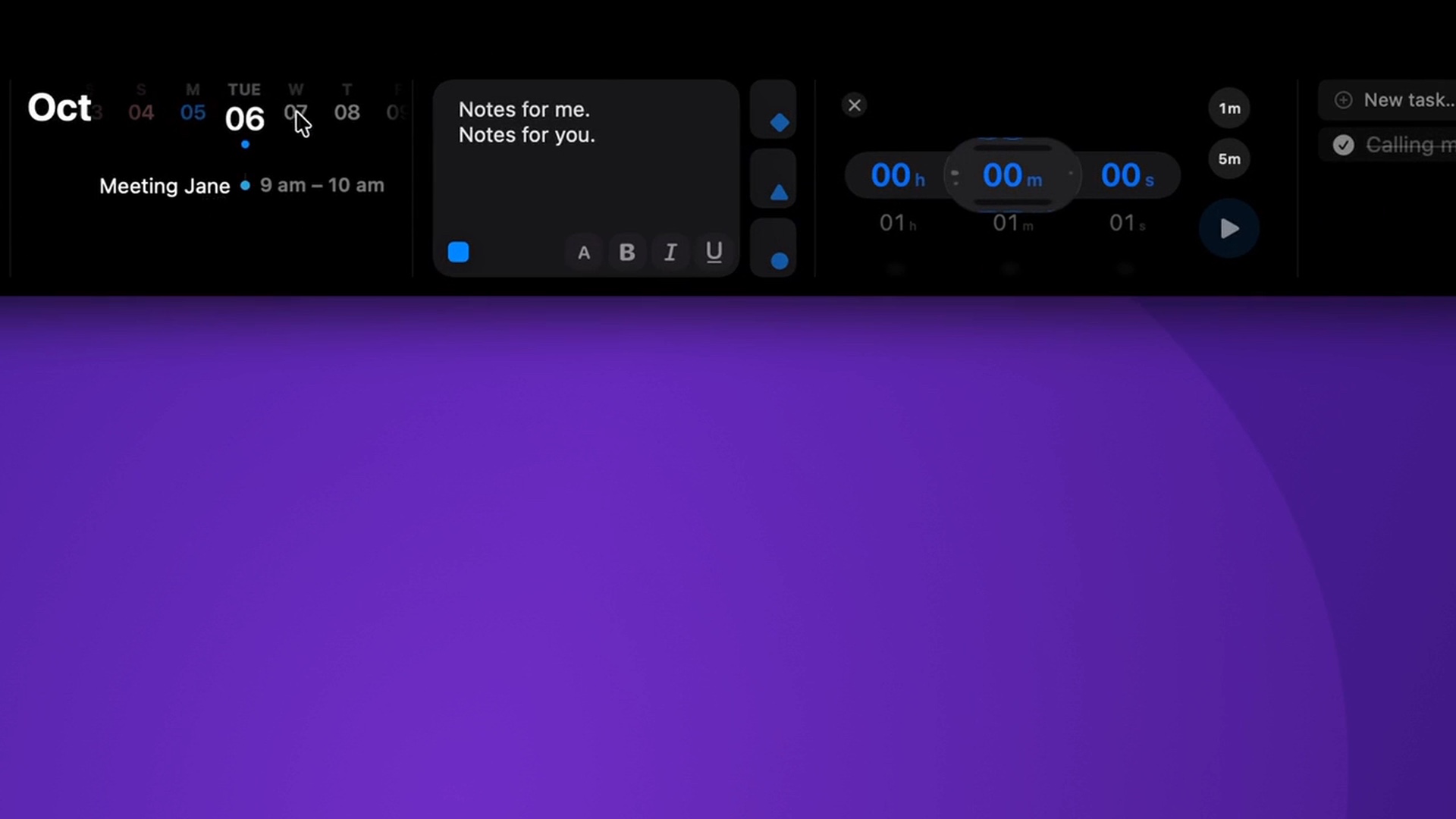
The screenshot shows a simple event, “Meeting Jane”, on the selected day. Use an event you recognize on your own Mac to check the same path before relying on the panel during a busy day.
- Open Apple Calendar and confirm that the event is visible there.
- Allow NotchNook Calendar access when macOS asks, then open the calendar widget in the Nook.
- Select the day of the event and compare its name and time with Calendar.
- For a meeting with a supported joining link, use its join action when you are ready; the call opens in the meeting service.
When an event is missing
Check the selected date first. Then check that the calendar account is available in Apple Calendar and that NotchNook has Calendar permission in macOS System Settings.
For Google Calendar, add the account to the Calendar app on your Mac; the Nook reads the calendars available through macOS. A calendar event needs a supported meeting link for a join action to be useful.